.jpg)
Your Money, Your Vibe.

Earn More and Save More đź’°
Get a Free Debit Card 🛍️
Financial Tools with the Grown App 📲
Limited-Time Back-to-School Offer
Start the school year with smart banking and a chance to win!
Open a new Vibe Checking Account for your child or grandchild by August 31 and receive a choice of a $10 Amazon or Roblox gift card, while supplies last, plus an automatic entry for a chance to win a backpack filled with school supplies!


Built for Kids. Loved by Parents and Grandparents.
Transfer money quickly whenever they need it.
Use the Grown Financial App to assign chores, reward responsibility and teach smart money habits.
Visit Oceanside on Saturdays
Can’t make it during the week? Our Oceanside Branch is open Saturdays throughout August, making it easier to open a Vibe Checking Account before the promotion ends August 31.
Don’t wait. This limited-time offer ends August 31.
Open a Vibe Checking AccountVibe Checking Accounts must be opened at a Nassau Financial branch.

Money Skills That Grow With Them
The Grown Financial App helps young members practice saving, spending and managing money, while giving parents and guardians tools to support their progress.
Learn by Doing

Included with Vibe Checking
Eligible Vibe Checking members can access Grown through Nassau Financial Online and Mobile Banking.
Help Them Start Building Financial Confidence
Open a Vibe Checking Account and give them a safe place to learn, save, and manage their own money.
Open a Vibe Checking AccountWhat is required for my child and me to register for Grown Financial App?
- Both parent/guardian and child must be members with active Nassau Financial accounts.
- Parent/guardian must be a joint owner on the child’s account.
- Both must have Online Banking access.
Â
How do I register for Grown Financial App?
- Log in to Online Banking or the Nassau Financial Mobile App.
- Select Grown Financial App from the Manage Accounts menu.
- Complete the registration form and accept disclosures.
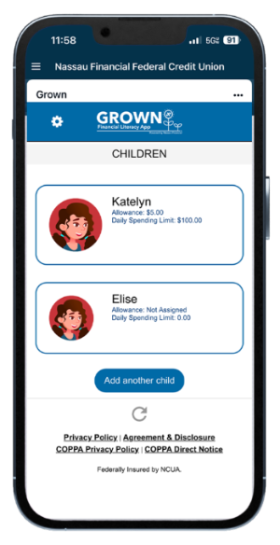
- Add children by selecting their account, entering details, and choosing an avatar.
Â
Does my child need their own Online Banking login?
- Yes. Children need login credentials to access Grown Financial App independently. Parents may still manage on their behalf.
Â
What accounts do we need for Grown Financial App?Â
- Both parent/guardian and child must have Membership Savings accounts. Checking accounts for minors may also be used.
Â
What account types can be used for transactions?Â
- Parents: any of their own Nassau Financial accounts.
- Children: their Nassau Financial savings and/or checking account.
Â
What if there are multiple joint owners on the account?
- Multiple owners can register, but only the first to register the child will have access to full functionality.
Â
Can non-parents use Grown Financial App?
- Yes, as long as the individual is a joint owner on the child’s account.
Â
Will my child still have access after turning 18?
- Yes. They’ll continue to have access until they transition to adult accounts or stop using Grown Financial App.
Â
How do I make sure my child has login credentials?
- If not created at account opening, parents can request setup through Online Banking or by contacting Nassau Financial.
- Log into online banking
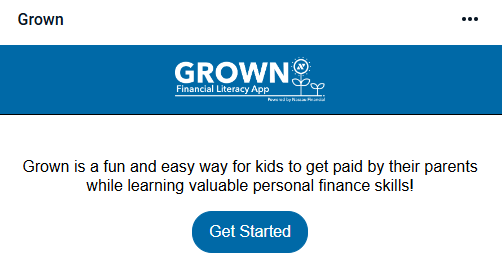
- On the Grown app click on “Get Started”

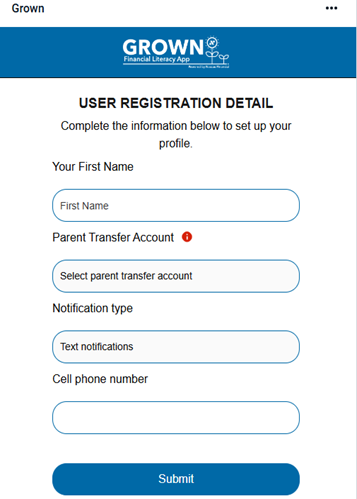
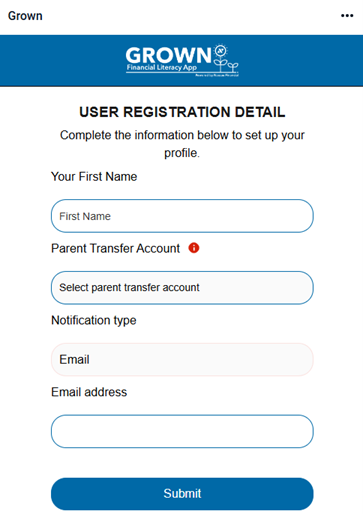
- Fill in the fields as follows:
- First Name
- Parent Transfer Account
- Notification Type
- Select Text or Email Notification
- Enter phone #, if selecting “Text” Notifications
- Enter email address, if selecting “Email” Notifications


Â
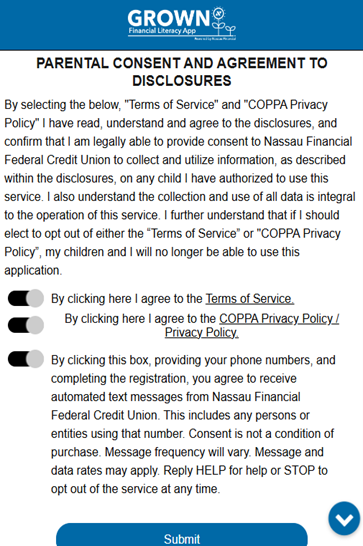
- Agree to “Parental Consent and Agreement to Disclosures”

Â
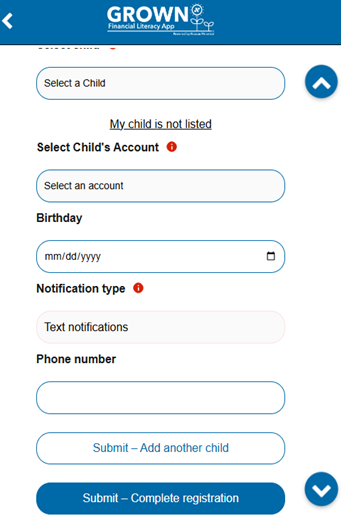
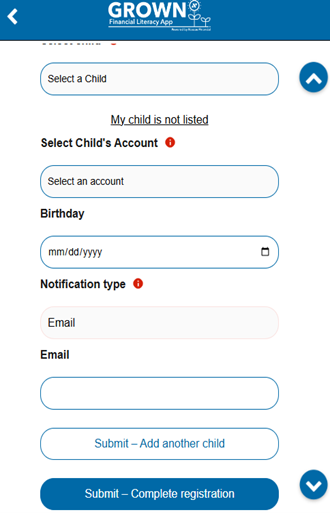
- Create your Child’s Profile
- Select an avatar
- Select your child from the dropdown
- Select your child’s account from dropdown
- Verify that their birthday, which should automatically populate, is accurate
- Select Text or Email Notification
- Enter phone #, if selecting “Text” Notifications
- Enter email address, if selecting “Email” Notifications
- Click “Submit – Add Another Child,” if you would like to register another child
- Click “Submit – Complete Registration,” if you do not have another child to register


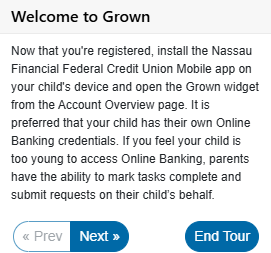
- Grown has a tutorial that will provide the Member with a quick overview
- Click “Next” or “End Tour” as appropriate